

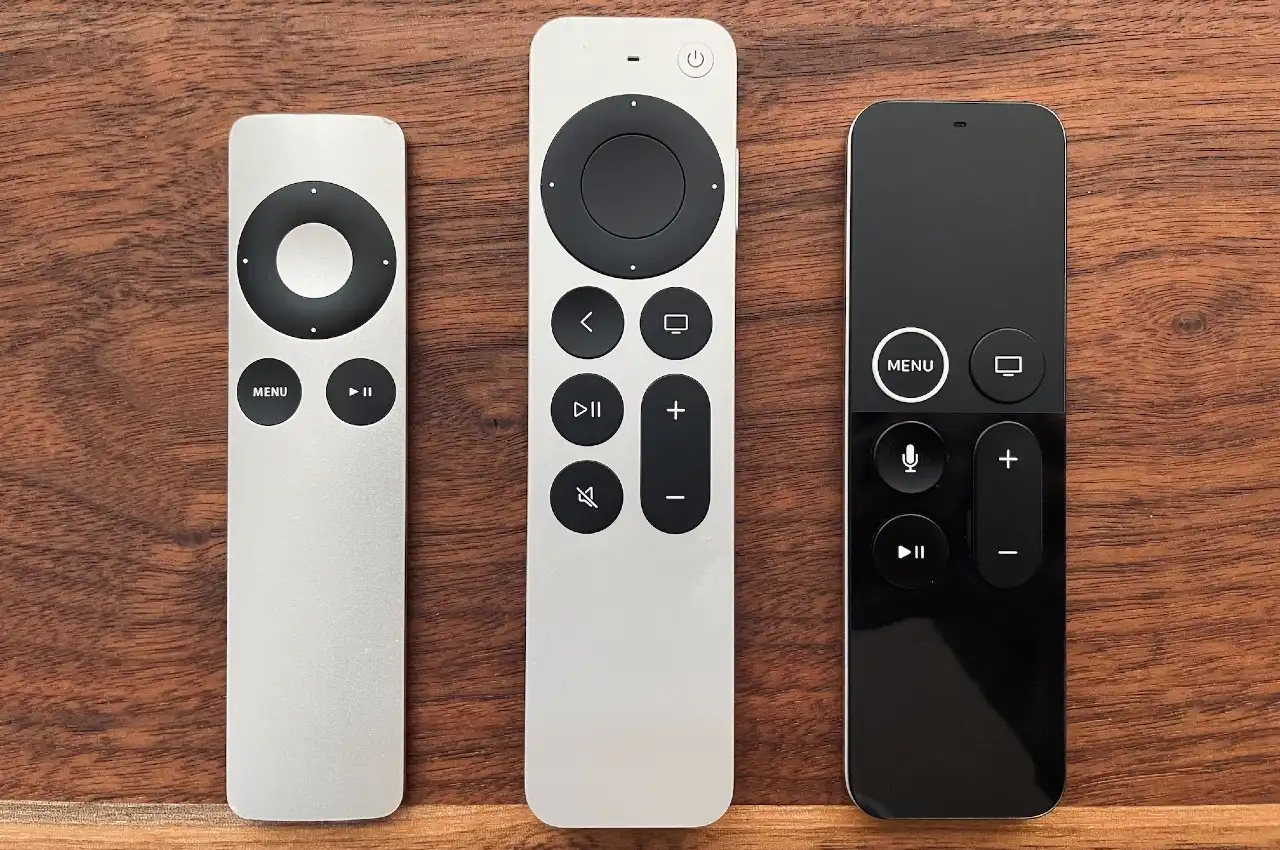
How to pair Apple TV remote controls is the first step to enjoying your favorite shows and movies. Whether you have the latest silver Siri Remote with USB-C or an older generation black glass model, the pairing process is designed to be quick and user friendly. In this guide, we will break down the exact steps for every hardware version to ensure you never lose control of your entertainment hub. If you are setting up a new device or replacing a broken unit, knowing how to pair Apple TV remote hardware correctly will save you time and frustration.
How to Pair Apple TV Remote (Siri Remote & Apple TV Remote)
For the modern silver Siri Remote (with the circular clickpad) or the original black Siri Remote (with the glass touch surface), the pairing process is nearly identical. First, ensure your Apple TV is powered on and displaying the home screen. Point your remote toward the Apple TV, keeping it about three inches away to ensure the Bluetooth signal is strong. Press and hold the Back button (or Menu button on older models) and the Volume Up (+) button simultaneously for five seconds. A message will appear on your television screen confirming that the pairing is successful. If you are looking for more hardware details, check out the for technical specifications.
How to Pair Apple TV Remote (Classic Aluminum or White)
If you are using legacy hardware, understanding how to pair Apple TV remote versions from the 2nd or 3rd generation requires a different approach. These remotes use infrared technology rather than Bluetooth. Point your remote at the console and press and hold the Menu and Right buttons for six seconds. You should see a “link” symbol appear on your screen, indicating the remote is now synced. If you ever need to move this remote to a different device, you must “unlink” it first by holding Menu and Left. For community driven tips on maintaining older Apple hardware, is an excellent external resource.
How to Pair Apple TV Remote Using Your iPhone or iPad
One of the most powerful features of the Apple ecosystem is the ability to use your iOS device as a backup controller. This is an essential workaround if your physical remote is lost or out of battery. To start, open the Control Center on your iPhone or iPad. If the remote icon isn’t visible, go to Settings > Control Center and add “Apple TV Remote.” Once you tap the icon, select your Apple TV from the list and enter the four digit code that appears on your TV screen. This creates a secure link over your local WiFi network, giving you full navigation and keyboard support.
Troubleshooting: Why Won’t My Apple TV Remote Pair?
Sometimes the standard steps for how to pair Apple TV remote devices don’t work immediately. The most frequent culprit is a dead battery. Unlike older remotes, the Siri Remote uses a rechargeable lithium-ion battery; plug it into a charger for at least 30 minutes before trying again. If the battery is full but the remote is still unresponsive, try a “soft reset” of the console by unplugging the Apple TV from its power source for ten seconds. Sometimes, the Bluetooth stack on the device simply needs a fresh start to recognize the remote’s signal. For additional tips and guides on maximizing your devices and deals on accessories, you can check out VoucherCell.
Advanced Shortcuts for Your Apple TV Remote
Once you have mastered how to pair Apple TV remote units, you should learn the shortcuts that make navigation faster. Double-clicking the TV button (the one with the monitor icon) opens the App Switcher, allowing you to force close apps that are acting up. Holding the TV button opens the Control Center, where you can quickly switch user profiles or put the device to sleep.
If you have the latest Siri Remote, a quick press of the side Siri button allows you to search for content using natural language, making it easier to find exactly what you want to watch. For a deep dive into the evolution of these features and latest hardware updates, you can explore the official Apple announcements for the latest information.
Keeping Your Apple TV Remote Connected
To prevent your remote from unpairing or lagging, it is vital to keep your Apple TV software updated. Navigate to Settings > System > Software Updates to ensure you have the latest version of tvOS. These updates often include firmware patches for the remote itself. If you find yourself frequently losing your remote, consider upgrading to the latest Siri Remote, which features “Find My” integration when used with an iPhone. This allows you to track the remote’s location within your home with high precision, ensuring you never have to search under the couch cushions again.