
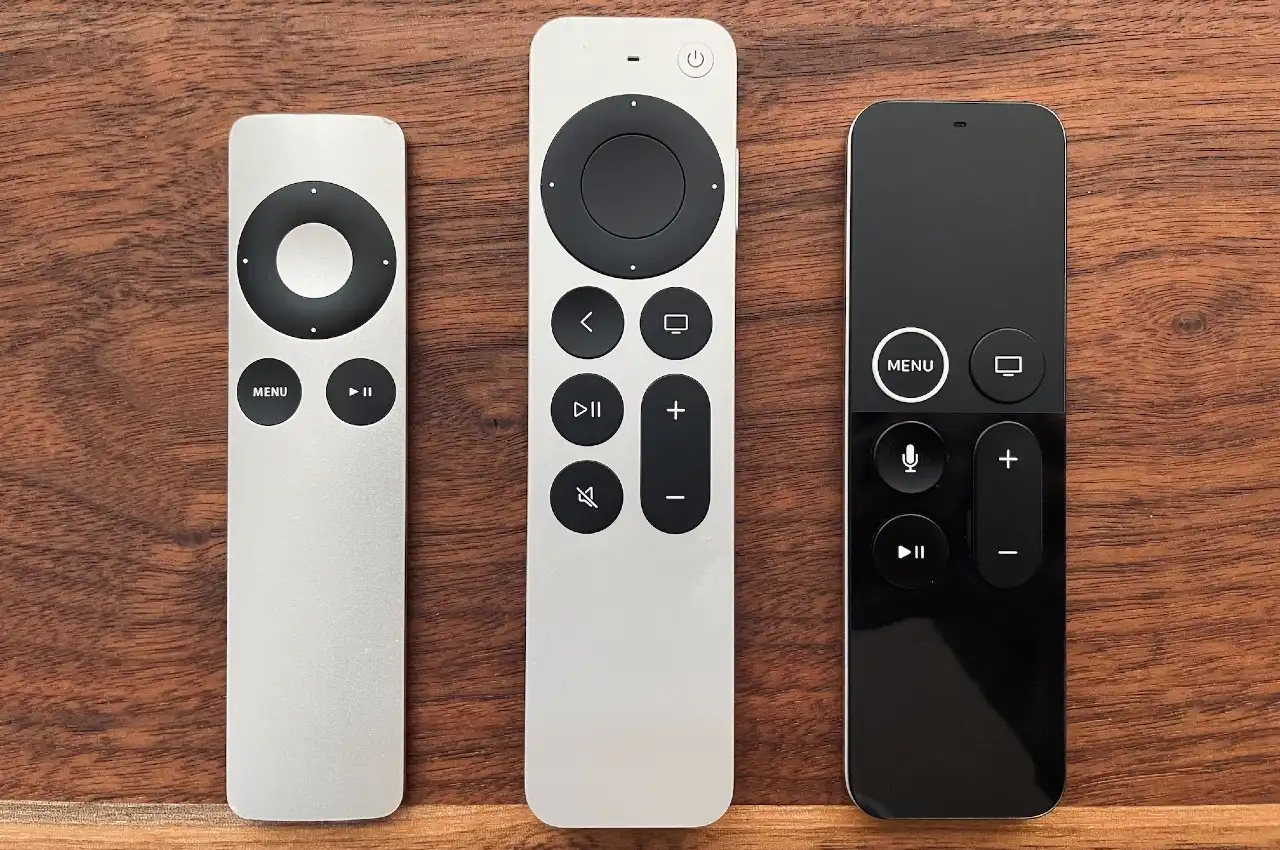
How to Pair Apple TV Remote is essential for anyone using Apple TV for streaming. Apple TV is one of the most reliable options available for media streaming. You can enjoy music, watch videos, play online games, host screen sharing conferences, or watch a Livestream without connecting your smartphone, iPad, or desktop to your television. While you can use Apple iPhone apps to control your TV, you still need the remote that came with the unit. The physical differences between the 2017 Apple TV and the new 2021 Apple TV are modest, but the remote redesign provides a significant step forward for getting comfortable on movie night. For detailed instructions, you can visit the Apple Official Support Page.
Exploring the Range of Apple TV Remote Controls
Understanding your remote is the first step in learning how to pair the Apple TV remote correctly. Let us start by looking at the various versions of the Apple Remote Control currently available. The Siri Remote / Apple TV Remote is the remote for Apple TV that works with Siri and comes from the 4K and HD generation. It is referred to as the Siri Remote in countries that support Siri. Older versions include the Apple TV silver Apple Remote from the 2nd and 3rd generations, and the Apple TV white Apple Remote, which dates back to the very first generation.
Apple TV Remote vs. Siri Remote Functionality
The older Apple TV remote, made of silver and white plastic, is small and straightforward to use. It provides only six buttons: four for navigating menus and two for controlling playback. You navigate menus and make selections by swiping your finger over the touchpad on the remote. You can even enter text into on-screen fields, such as your WiFi password, using the touchpad.
The Siri Remote (2nd generation) allows you to manage your Apple TV 4K and Apple TV HD with more precision and efficiency. You can select scenes by clicking the new touch-enabled clickpad, swipe through playlists, or use a circular gesture on the outer ring to find exactly what you are looking for.
Additionally, thanks to Siri, you can search for anything using your voice. Apple TVs with earlier remote controls are compatible with other Apple TV remotes, though they lack some of the advanced features. The Siri Remote is only compatible with Apple TV 4K and HD content.
Pairing Your Apple TV Remote with a New Apple TV Box
The remote control for the Apple TV HD from the previous generation is nearly identical to the remote control that comes with the fourth generation Apple 4K TV unit. The only obvious difference is that the Menu button lacks the white ring found on the older remotes. The pairing instructions for the remote, however, are slightly different depending on the generation.
How to Pair Apple TV Remote (Older Generations and 1st Gen Siri)
First, check to ensure that your Apple TV is turned on. Position the Apple Remote three inches away from the set top box. Then, press and hold the Menu and Volume Up buttons on the remote control for five seconds. When you receive a notification on your television screen requesting that you bring the Apple Remote closer, just set the Apple Remote on top of the Apple TV.
Siri 2nd Generation and Later Remote Setup
Ensure that your Apple TV is turned on. Position the Apple Remote three inches away from the set top box. Press and hold the Back and Volume Up buttons at the same time for two seconds. When you receive a notification on your television screen requesting that you bring the Apple Remote closer, just set the Apple Remote on top of the Apple TV. If the “Remote connection” notice does not appear on the television screen, disconnect your Apple TV from the wall plug socket. Connect the plug again after six seconds, and then try to pair it with the remote again. Repeat these steps if needed.
Controlling Your TV Volume and External Device
The Apple TV remote can be programmed to control volume on external devices. This is how you learn how to pair apple tv remote to samsung tv volume or to control a soundbar. You can use the remote to adjust the tv volume on popular brands like Samsung TV, LG TV, or TCL TV. These commands are usually configured through the Apple TV’s settings menu under “Remotes and Devices,” allowing the Apple Remote to send infrared (IR) signals to your television or audio equipment.
Handy Shortcuts on the Apple TV Remote
The Apple TV remote offers many shortcuts for efficient use. To switch between open apps quickly, simply double tap the Home button (the TV icon). All currently open apps will display on the screen, and you can navigate between them by swiping right and left.
Swiping up on the remote will allow you to close an application. To change the audio output, hold down the Play/Pause button on the home screen until the menu appears. From there, you can choose which device to use, such as HomePod or other speakers.
You can also press and hold the Home button until a tab shows up, allowing you to select the AirPlay icon. To put your Apple TV to sleep, press and hold the Home button for a short period, and a prompt saying “Sleep now?” will appear on the screen.
For a complete reboot of your Apple TV, hold down both the Menu and Home buttons at the same time for at least seven seconds. If you want to activate the screensaver from the Home screen, simply double tap the Menu button twice.
Troubleshooting: How to Deal with Apple TV Remote Instability and Reset
Despite Apple’s efforts, you may still experience difficulties with your remote. Many customers experience problems, especially after upgrading to the latest TVOS 15. If your remote does not function, unplug your Apple TV from the wall power socket. Connect it again after six seconds, and then try to pair it with the remote again. Always check the remote’s battery first to make sure it has not been completely depleted. If the battery is fine, you will need to reset the remote control.
How to Reset the Siri Remote Control
Press and hold the TV/Control Center button as well as the Volume Down button at the same moment for a few seconds. Hold the buttons down for about five seconds, or until the Apple TV status light goes off and then comes back on. Let go of the buttons and wait for five to ten seconds. A message stating “Connection Lost” will show on your television screen. A “Connected” notice will display on your television screen following the restart of your remote.
How to Reset the Apple Remote Control (Older Aluminum)
To disconnect the Apple Remote from the Apple TV, hold down the Menu and the Left arrow buttons on your Apple Remote for six seconds. Then, on your Apple TV, look for the word “Unlink,” which is located above the symbol of a remote.
Now, if you want to reconnect it, follow the steps for how to pair Apple TV remote.
To make your Apple Remote work again, hold down the Menu and Right buttons on your Apple Remote for six seconds. On your Apple TV, look for the “Link” symbol above the icon of a remote.
Repeat these steps if necessary to fully understand how to pair Apple TV remote correctly. This process ensures that you know exactly how to pair Apple TV remote with your device every time you reset or reconnect it.
Using Your iPhone or iPad as an Apple TV Remote
It is incredibly simple to operate your Apple TV from your iPhone, iPad, or iPod Touch by selecting “Apple TV Remote” from the Control Center. To learn how to pair Apple TV remote with your device, you do not need to download an app; the function is built right into the Control Center. Just make sure you have the most recent versions of iOS and tvOS on your device. This method is also compatible with Smart TVs that support AirPlay 2. This feature is only available on Apple TV HD and Apple TV 4K, but for older models, you have to download an app to connect your device.
Steps to Connect Your iPhone or iPad to Your Apple TV
Open the Control Center by swiping up from the bottom of your iPhone (iPhone 8 and prior) or swiping down from the top right corner of your iPhone (iPhone X and after). Press the Apple TV Remote button. To complete how to pair Apple TV remote, select your Apple TV from the drop-down menu and enter the four-digit passcode that is displayed on the television.
Universal Remote Controls For Apple TV
To utilize a universal remote control with your Apple TV, you must first program the remote via the Apple TV user interface. This process is an essential part of how to pair Apple TV remote correctly. You can use either a network-based remote or an infrared remote control.
How to Use a Network Based Remote
Go to Home on the Apple TV. Press the “Add” button. Now select “Add Accessory” to add a new remote.
How to Use an Infrared Remote
Open up Settings. Go to Remotes and Devices. Select “Learn Remote” on the Apple TV to get started. This is an important step in how to pair Apple TV remote with a universal remote. Follow the on-screen instructions to teach the Apple TV to recognize the buttons on the remote control for the first time. Remember that the universal remote must be programmed with a device before you proceed with the learn remote procedure. If this is not the case, the remote will not send any signal out to learn when buttons are pressed.
Finding the Best Streaming Platforms and Deals
Once your remote is paired, you can access the Best Streaming Platforms 2026. You can watch the best movies on these platforms and even explore the top horror films. Additionally, you can find the best free streaming platforms or best live streaming platforms for 2026. The Apple TV box is also great for gaming, supporting many of the Best Streaming Platforms 2026 designed for gamers.
Keep an eye out for great savings on the Apple TV itself! If you’re learning how to pair Apple TV remote, now is also a good time to grab your device. Black Friday Deals 2026 will be available at retailers like Walmart, Amazon, and Best Buy. Look for Black Friday deals 2026 on TVs or even PS5 bundles. You can also find great savings on platforms like Steam or PlayStation in 2026.
